
Webinar
This free online webinar introduces PROTAI and everyday eye-area skincare. The session lasts about 90 minutes.
Go to registration ↗Registration opens a separate site that asks for your name, phone number and email. How your data is handled ↗
Check the external registration page for current times and availability. “Added to cart” is the platform’s wording for selecting a session; the webinar is free.
Registration and joining guide
01Step 1: Access the Registration Page
You can register in either of the following ways:
Scan the QR code using your smartphone or tablet

Click the link below to go directly to the English Registration Page:
https://prosunfun.protai.com.tw/f/eyecareonlineseminar
Once opened, you will be taken to our registration page in English.
02Step 2: Browse the Webinar Information
At the top of the page, you will find an introduction to the webinar.

※To display your application information in English, please select ‘English’ from the language settings at the top right of the screen.
Scroll down to the bottom to see the available time slots.
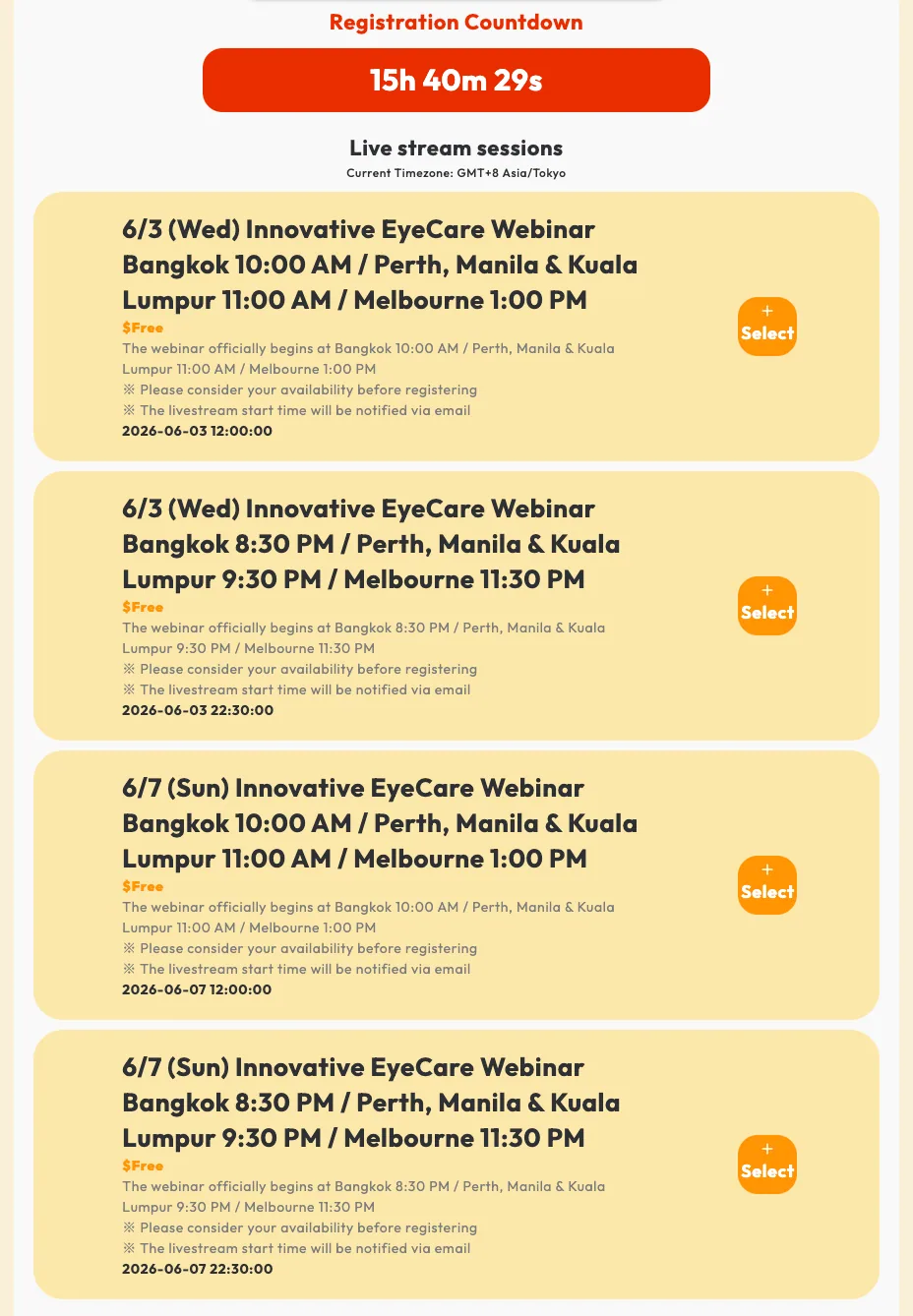
Our webinar is usually held every Wednesday and Sunday at Bangkok: 10:00 AM / Perth, Manila & Kuala Lumpur: 11:00 AM / Melbourne: 1:00 PM and every Wednesday and Sunday at Bangkok: 8:30 PM / Perth, Manila & Kuala Lumpur: 9:30 PM / Melbourne: 11:30 PM
Please note: each session is limited to 30 participants only. (Times may vary due to national holidays in Japan or our team’s schedule.)
03Step 3: Select Your Session
Choose the session that fits your schedule and click the “Select” button.
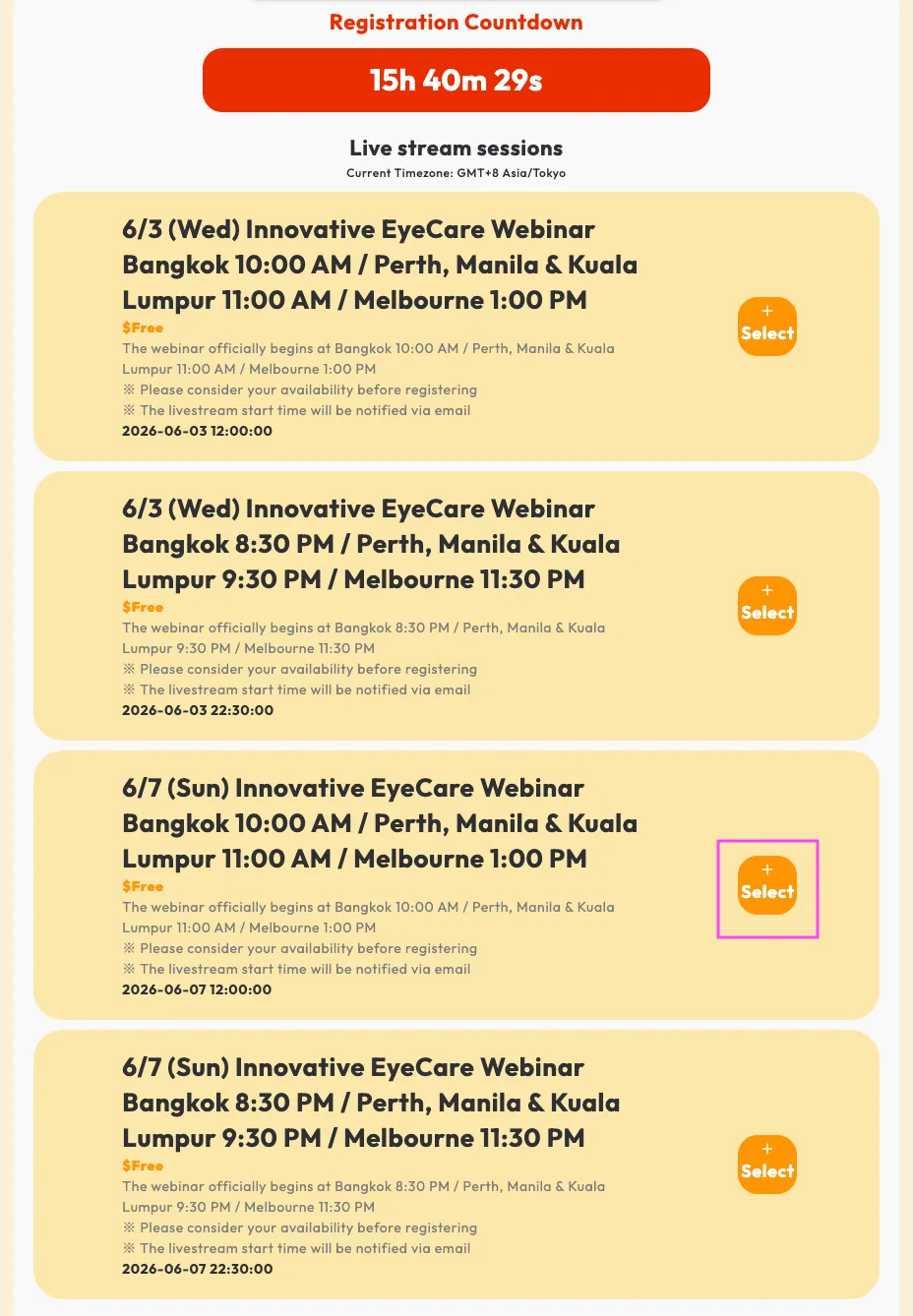
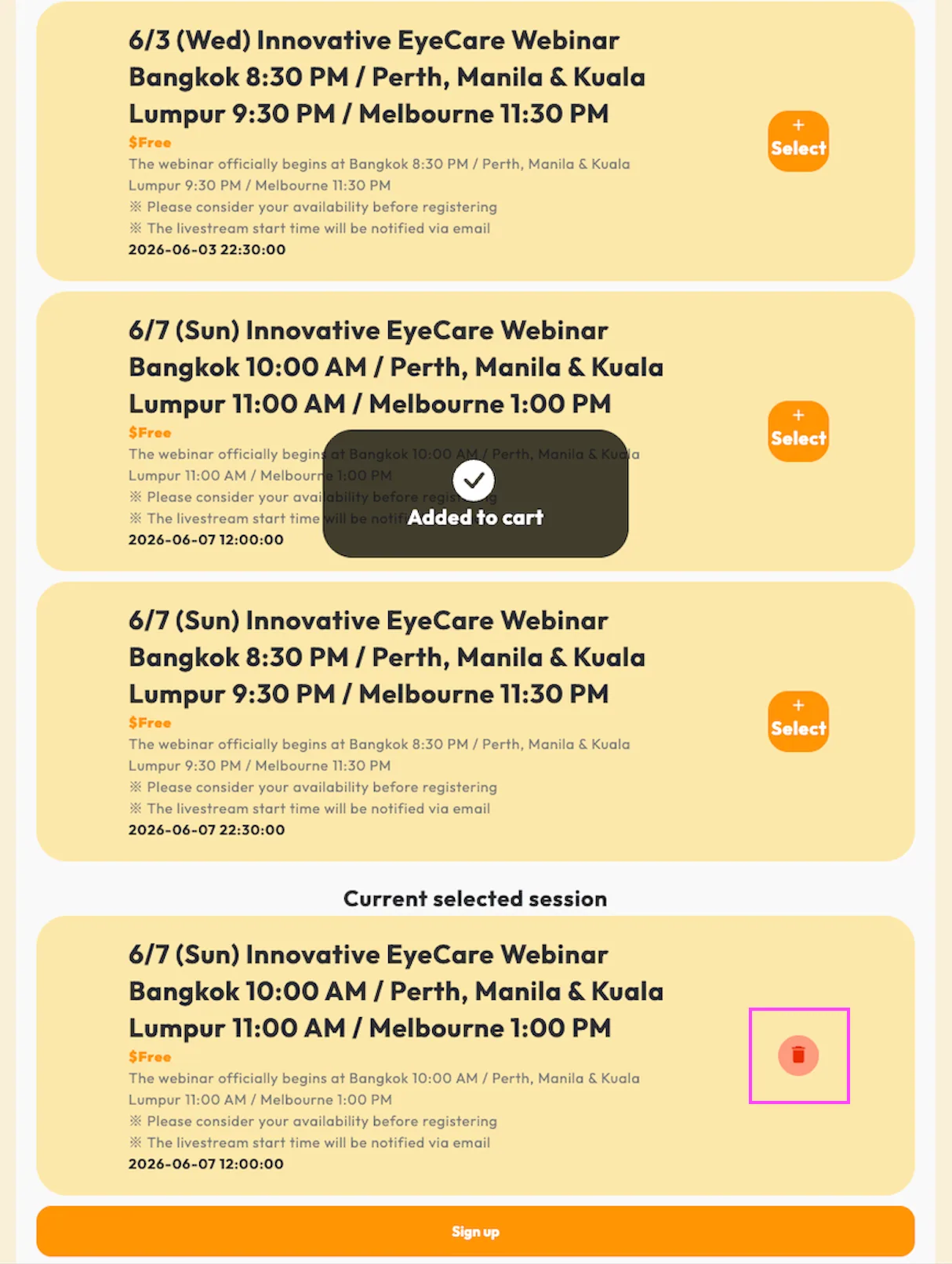
After clicking, you will see “Added to cart,” which means your session has been selected.
If you wish to change the session, simply press the red Cancel button before completing your registration.
04Step 4: Sign Up and Enter Your Information
Once you have chosen your session, click the “Sign Up” button.
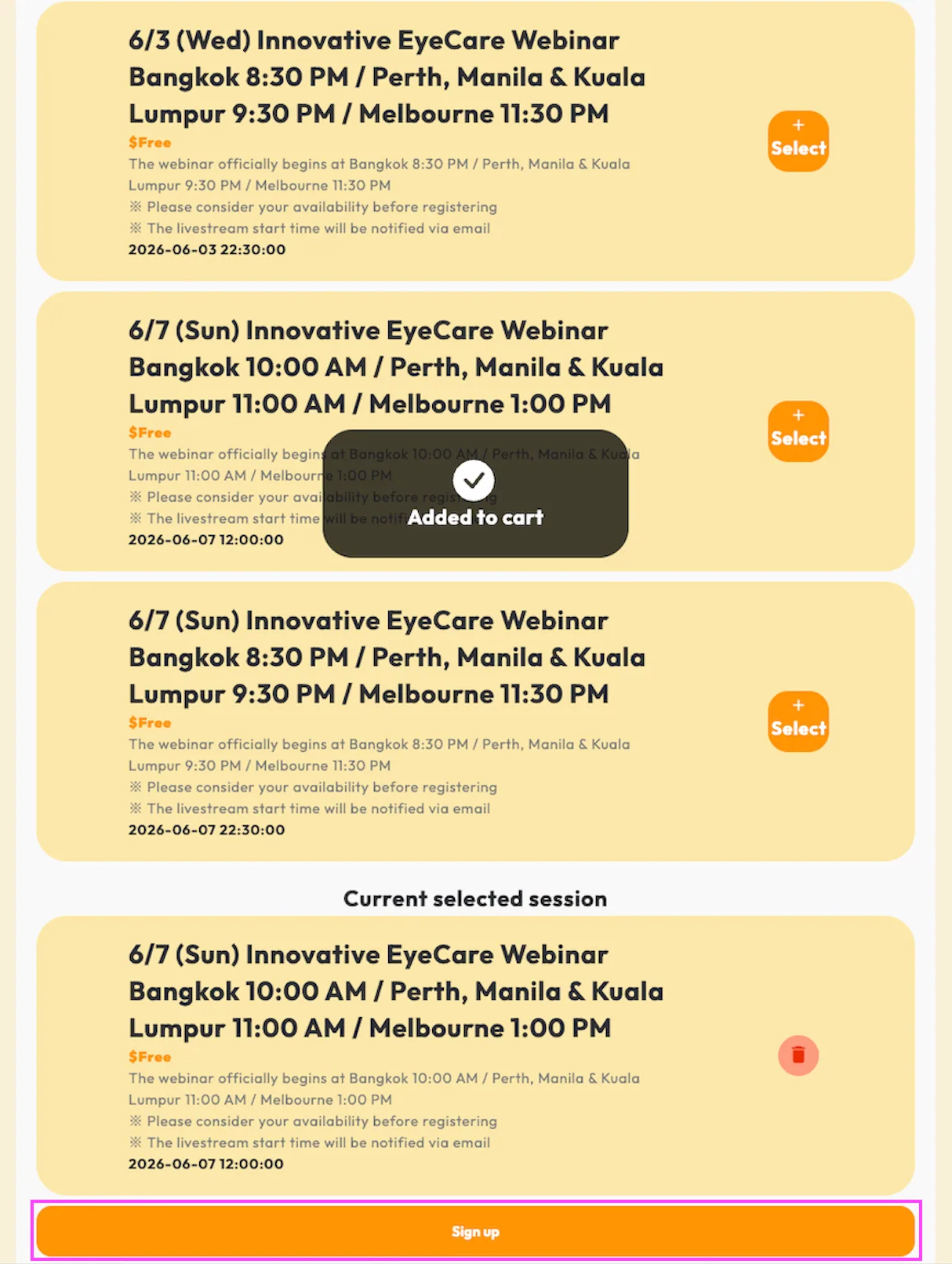
You will then be asked to provide your personal information:
Full Name – You may enter it in your native language (not limited to English).
Phone Number – Select your country code and enter your number (exclude the first “0” in your local format).
Email Address – Please double-check for accuracy.
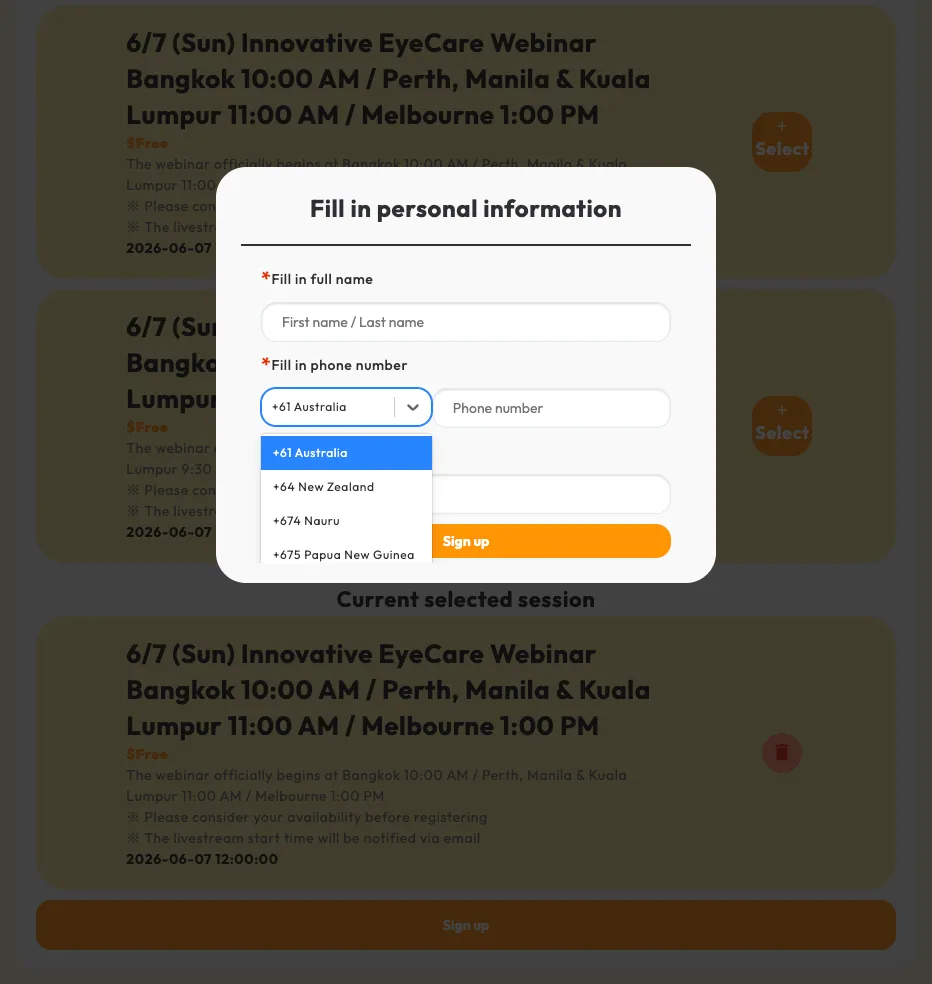
Accurate information is important so we can send you the webinar link by SMS or email.
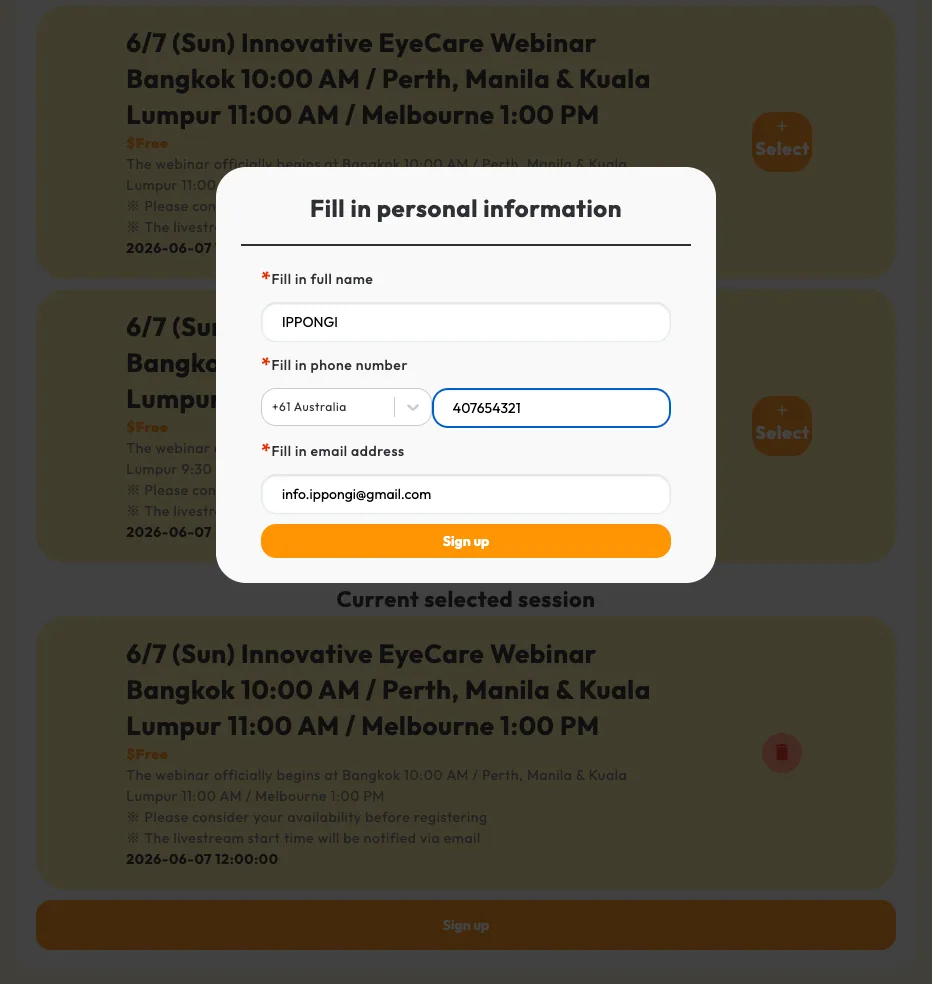
After reviewing your details, click “Sign Up” to continue.
05Step 5: Confirm Your Registration
Before finalizing, you will be asked to confirm the following:
I have confirmed that my registration details are correct and I will attend on time.
I understand that this webinar has limited spots. If you are unable to attend the webinar after completing the registration, please contact the organizer one day before the event.
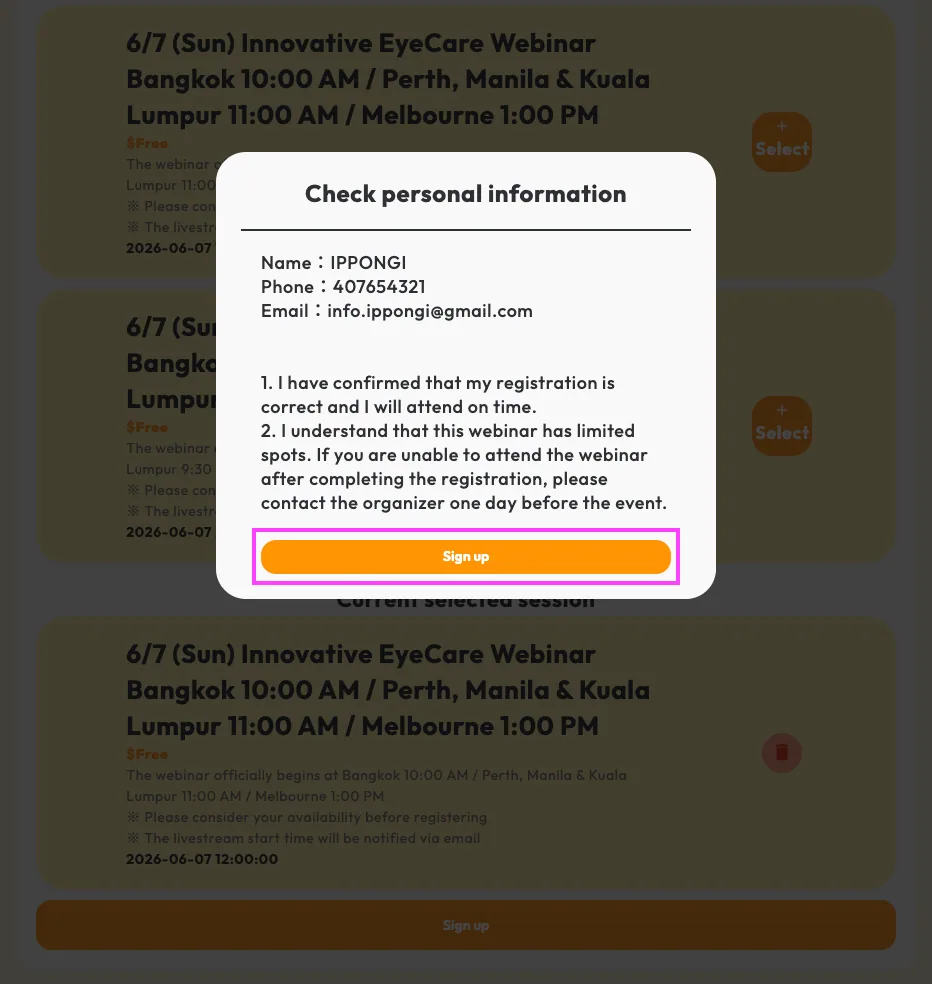
After confirming, press “Sign Up” again.
06Step 6: Registration Complete
You will see a Congratulations page once your registration is complete.
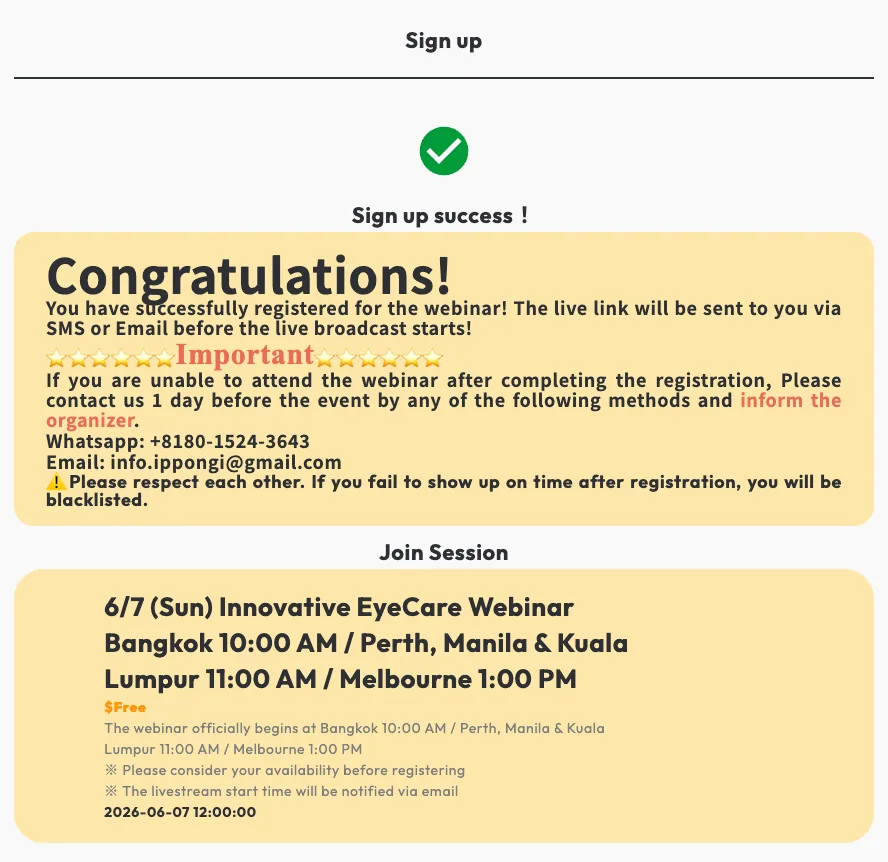
Shortly after, you will receive a confirmation email with the subject: “Thank you for signing up for this webinar! Get ready to uncover the 3 secrets to eye care.”
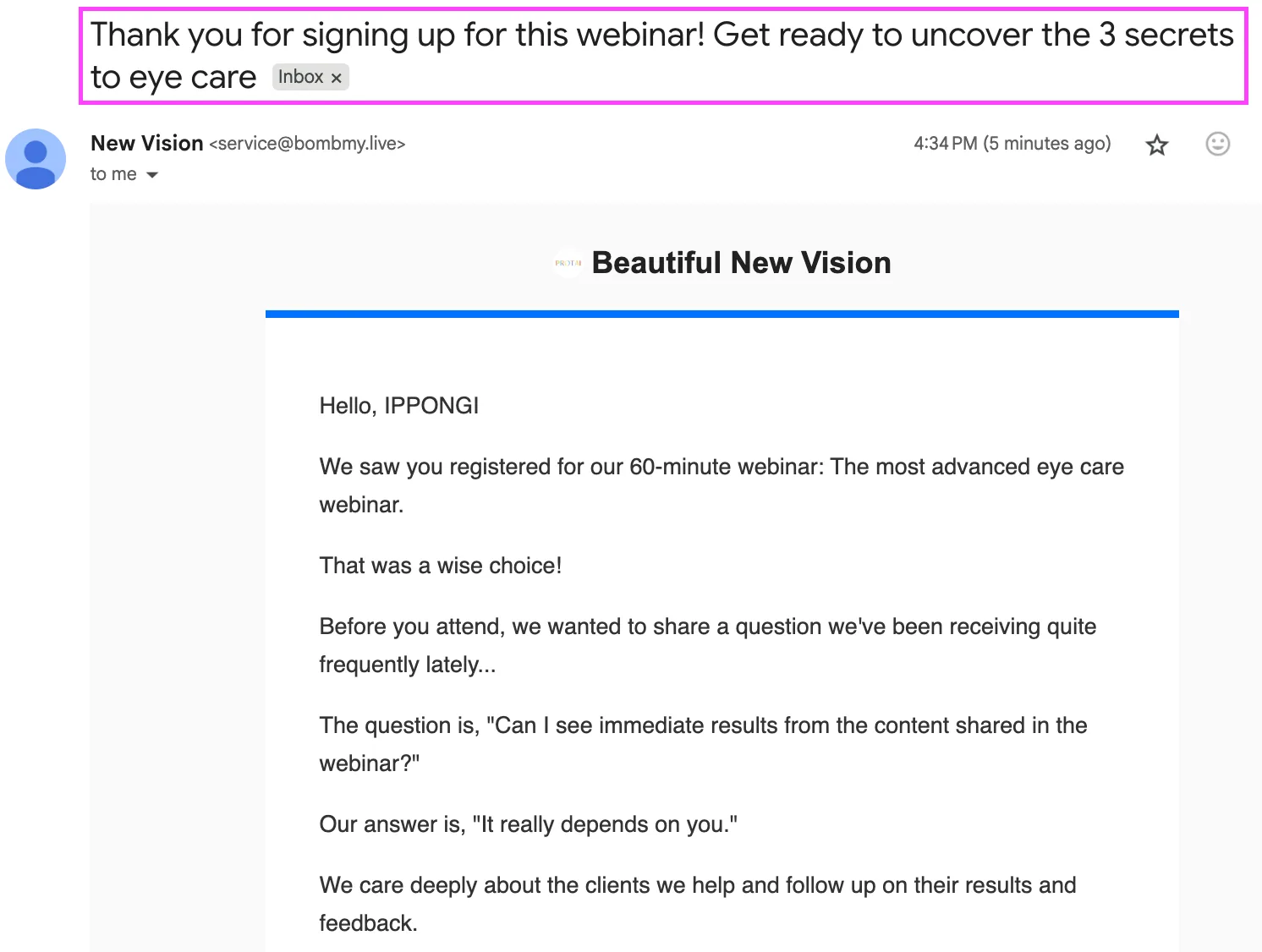
Scroll down the email, it will include your webinar access link.
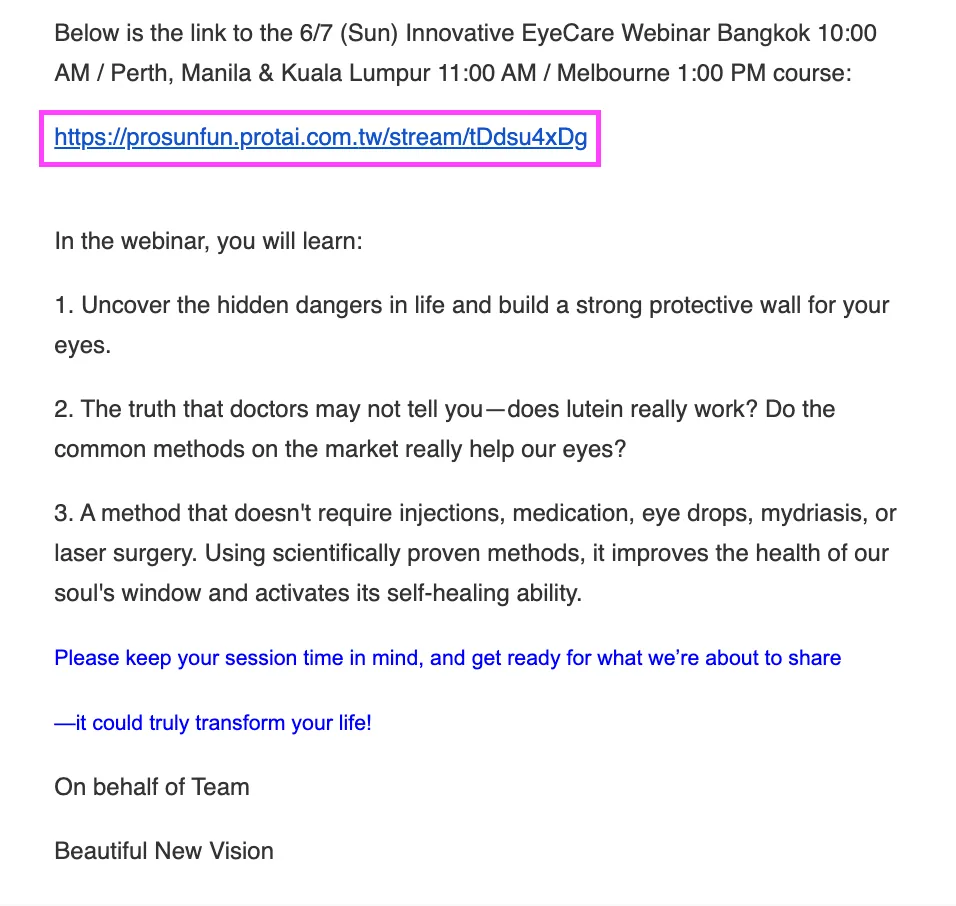
Use this link to join webinar at your chosen session time.
07Step 7: Reminder Notifications
Don’t worry if you forget your time slot— We will send you a reminder via email or SMS on the same day, as well as 3 hours before the webinar begins.
08Logging in to the Webinar
Before the webinar begins, please log in using the access link sent to you via email or SMS.
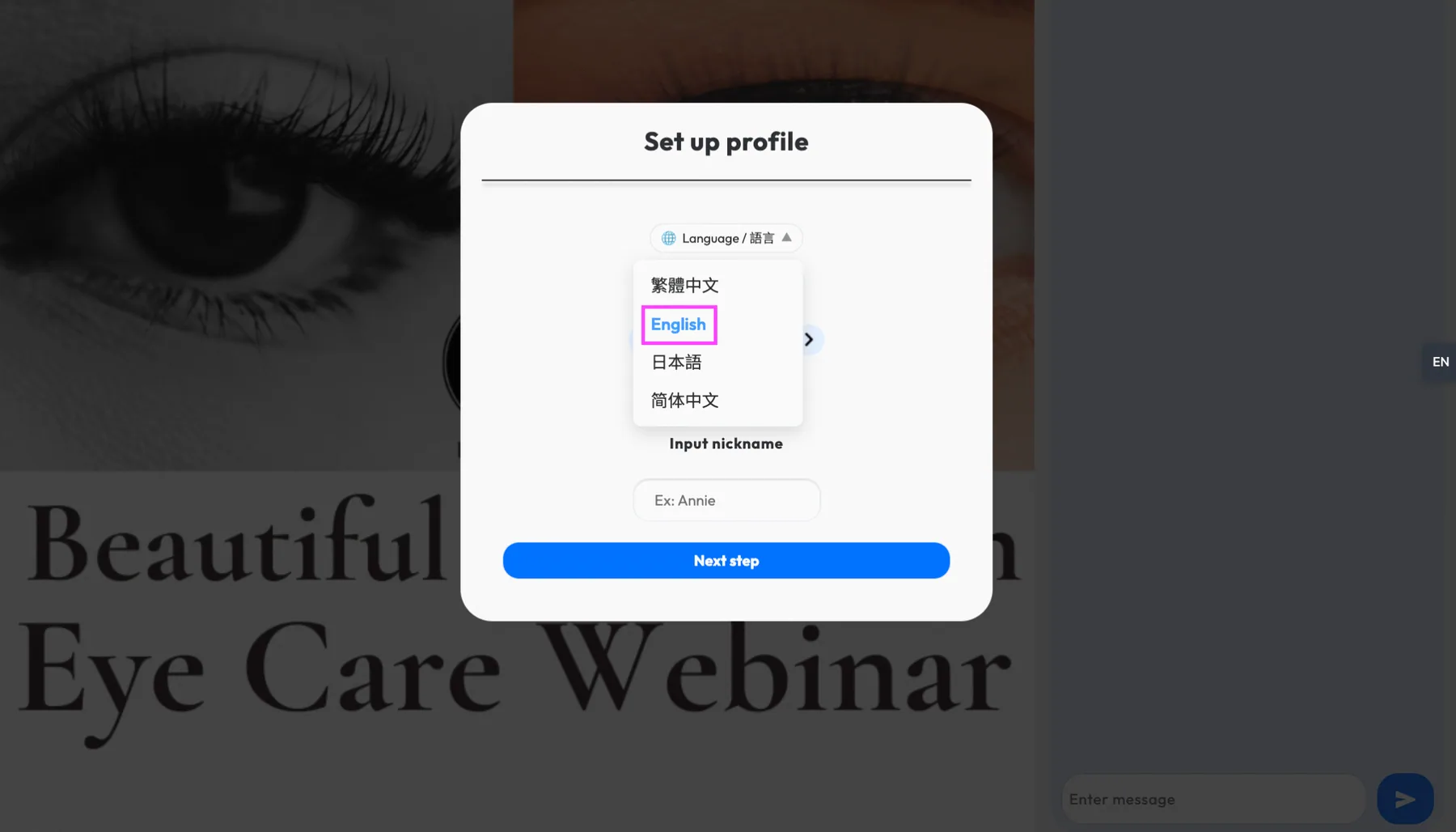
Step 1: To display the profile settings screen in English, select “English” from the language settings
Select English in the language settings if needed.
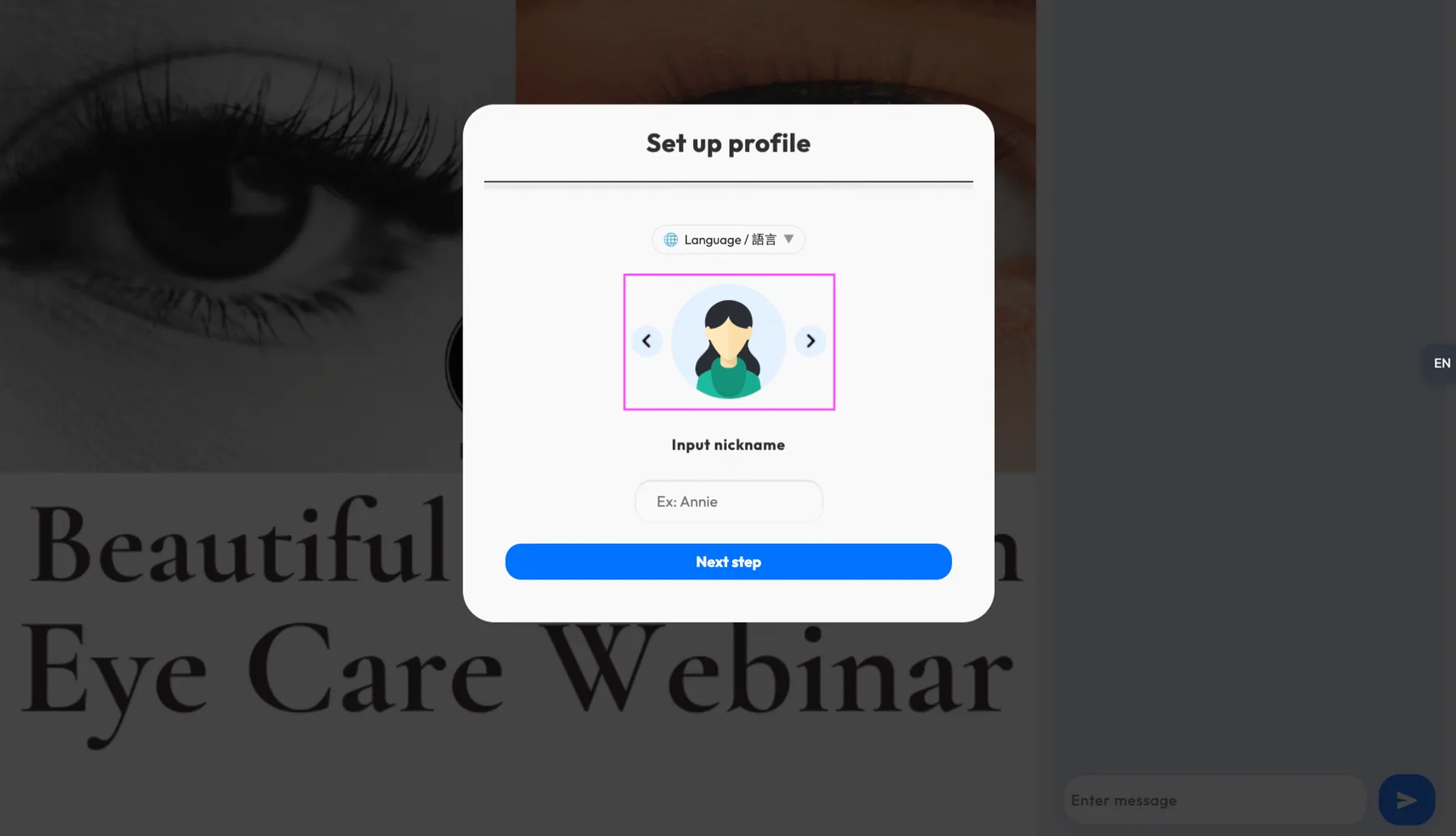
Step 2: Select Your Profile Icon
Choose a profile icon that you prefer
Step 3: Enter Your Display Name
Type in the name you would like to appear during the webinar. (You may use your real name or an alias, depending on your preference.)
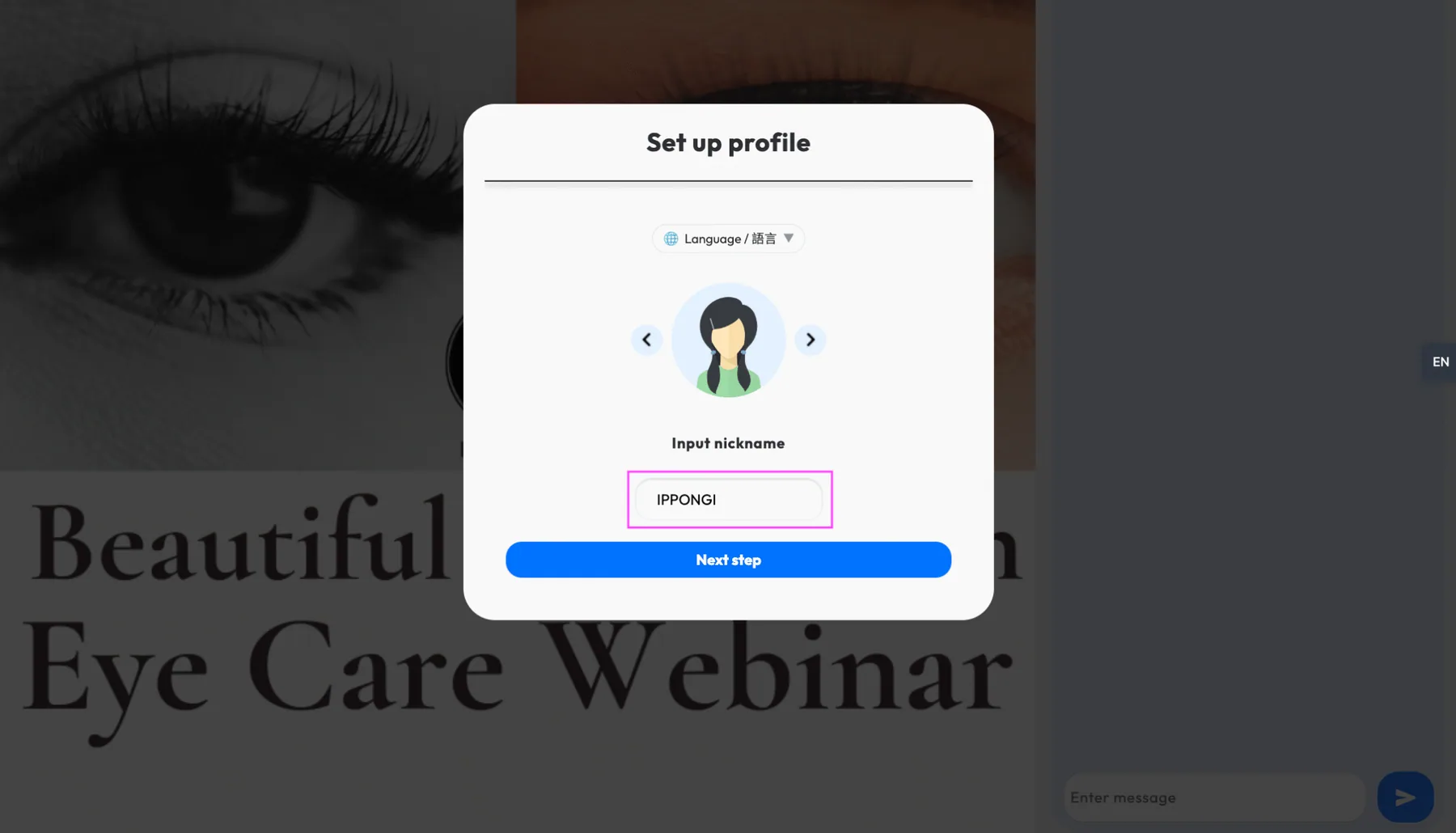
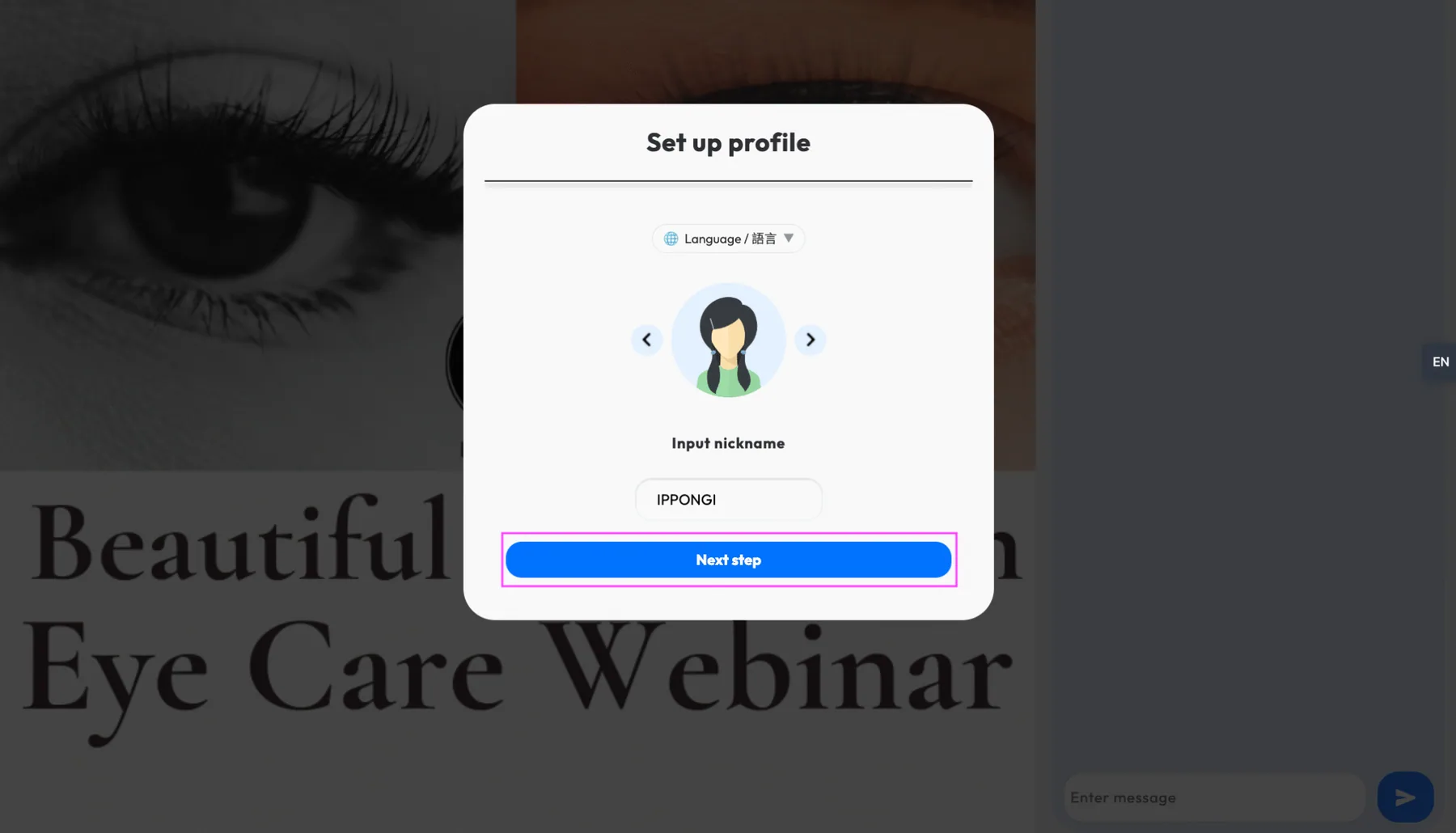
Step 4: Confirm and Proceed
Click the blue button to continue.
Step 5: Verify Your Information
The system will automatically review your personal information. Simply click the blue button again to complete the login process.
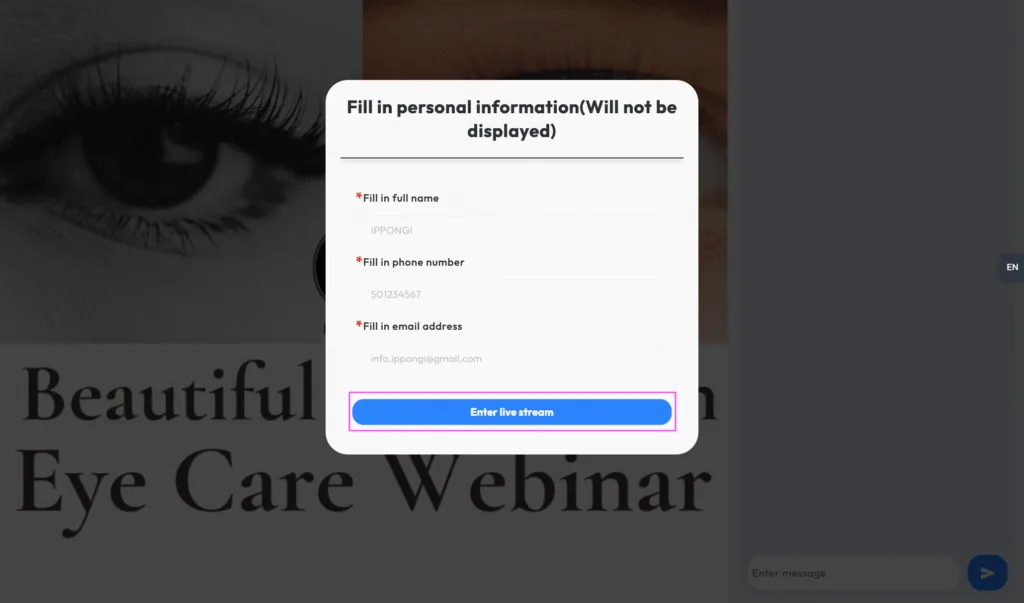
You will then be connected to the webinar.